
Minecraft-server
Yes, you are invited. If you cannot read English, please use This Web Translator
Mod Installation Guide (Fabric)
This guide will walk you through installing mods for Minecraft 1.21.10 using the Fabric mod loader.
Prerequisites:
- Minecraft 1.21.10: Ensure you have Minecraft 1.21.10 installed and have run it at least once.
Installer
For Mods
we use fabric
For Shaders (Shaders are not installed on server)
I use Iris
Mods List
Explore Shaders Using Iris Online!
Recommends (High Compatibility, Apple M-Series, etc.):
For High Performance PC (With Ray-Tracing)
- Iteration T 3.+ Note. To Make Sure This Shader Run on Iris, You Need to Download The Latest Iris Loader.
Shaders Installation:
Video For Installing Mods
(powered by Manim)
Steps:
0. Install Java JDK-21
- Get Java From Azul: Open following url via browser https://www.azul.com/downloads/?package=jdk#zulu. Choose Java 21 and download the correct variant based on your operating system.
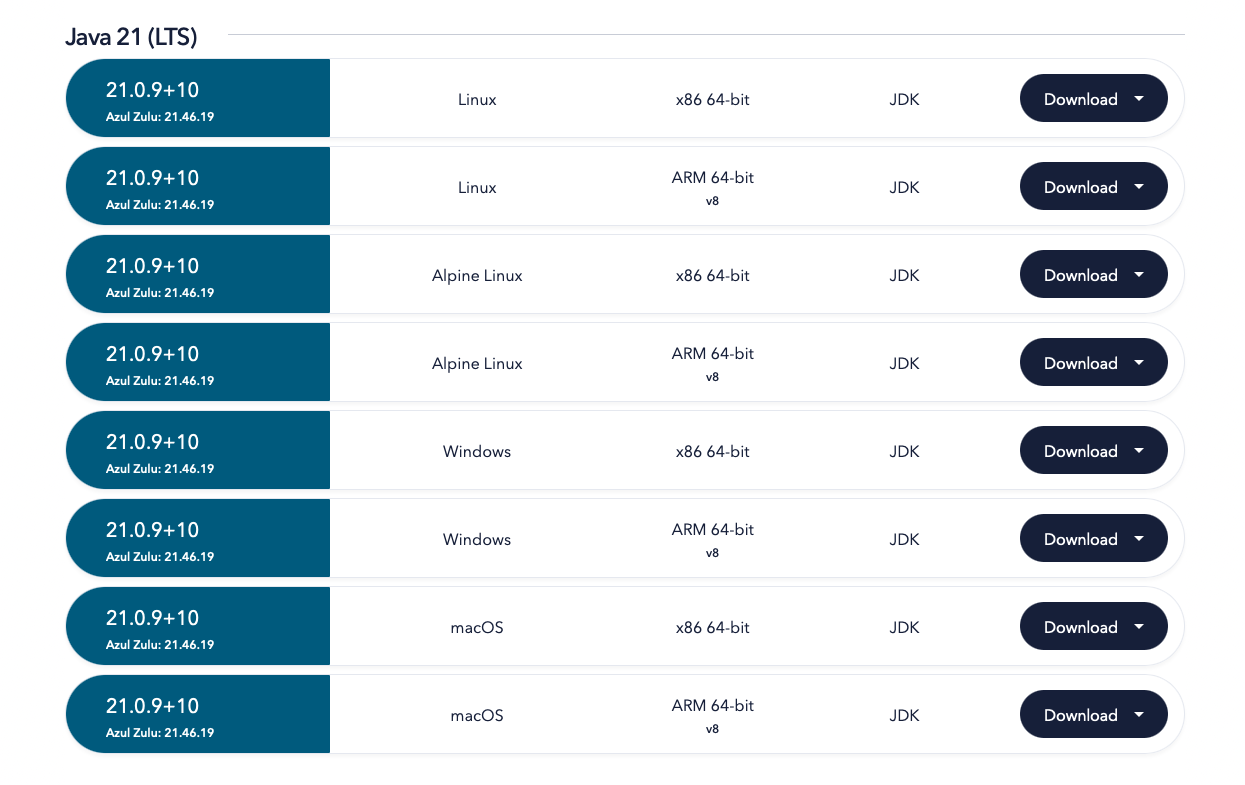
- Install Java By Fllowing The Installer Instruction: Double Click the downloaded
.dmg(MacOS) or.msi(Windows) file to trigger the installing process.
1. Install Fabric Mod Loader
Locate your Minecraft directory: This is where your Minecraft files are stored. The default locations are:
- Windows:
%appdata%\.minecraft(You can copy and paste this into the File Explorer address bar) - macOS:
~/Library/Application Support/minecraft(Open Finder, pressCmd+Shift+G, and paste this path) - Linux:
~/.minecraftor~/.local/share/minecraft
- Windows:
Run the Fabric Installer:
- Double-click the
fabric-installer-*.jarfile. If it doesn't open automatically, right-click and select "Open with..." and choose Java (or the Java Runtime Environment).
- Double-click the
Configure the Installer:
- Minecraft Version: Make sure
1.21.10is selected. - Loader Version: Choose the latest available Fabric Loader version.
- Installation Location: It should automatically point to your
.minecraftdirectory. If not, browse to the location you found in Step 1. - Create Profile: Leave this box checked.
- Click Install.
- Minecraft Version: Make sure
Success Message: You should see a confirmation message when the installation is complete.
2. Install the Mods
Locate the
modsFolder: In your.minecraftdirectory, you should now have amodsfolder. If it doesn't exist, create one.Copy the Mod Files: Copy all the
.jarfiles from Mods List
3. Install Iris & Shaders
- Run the Iris Installer:
- Double-click the
Iris-Installer-*.jarfile. If it doesn't open automatically, right-click and select "Open with..." and choose Java (or the Java Runtime Environment). - A menu will appear, click the "Install" button.
- Double-click the
- Install Shader:
- Prepare the
.zipfile of your shader. Do not unzip the file! - Create a new folder named
shaderpacksunder your.minecraftdirectory - Move your
.zipfile to theshaderpacksfolder.
- Prepare the
4. Launch Minecraft with Fabric
- Open the Minecraft Launcher.
- Select the Fabric Profile: Before launching, in the bottom-left corner, click on the profile selection (it probably says "Latest Release" or "Minecraft 1.21.10").
- Choose the Fabric Loader Profile: Select the profile that starts with "Fabric Loader" and includes the Minecraft 1.21.10 version. If you don't see it, you may need to enable "Modded" versions in the Installations tab.
- Play: Click the "Play" button.
Troubleshooting
- Minecraft Crashes:
- Ensure all mods are for Minecraft 1.21.10 and Fabric.
- Check for mod conflicts. Try removing mods one by one to see if one is causing the issue.
- Update your graphics drivers.
- Make sure you have enough RAM allocated to Minecraft in the launcher settings.
- Fabric Profile Missing:
- Go to the "Installations" tab in the Minecraft Launcher.
- Make sure "Modded" is checked in the filter options (usually at the top).
- If the profile is still missing, re-run the Fabric Installer.
- Java Issues:
- Ensure you have Java 21 or later installed.
- If you have multiple Java versions, make sure the Fabric Installer and Minecraft are using the correct one.
Enjoy playing Minecraft 1.21.10 with your mods!